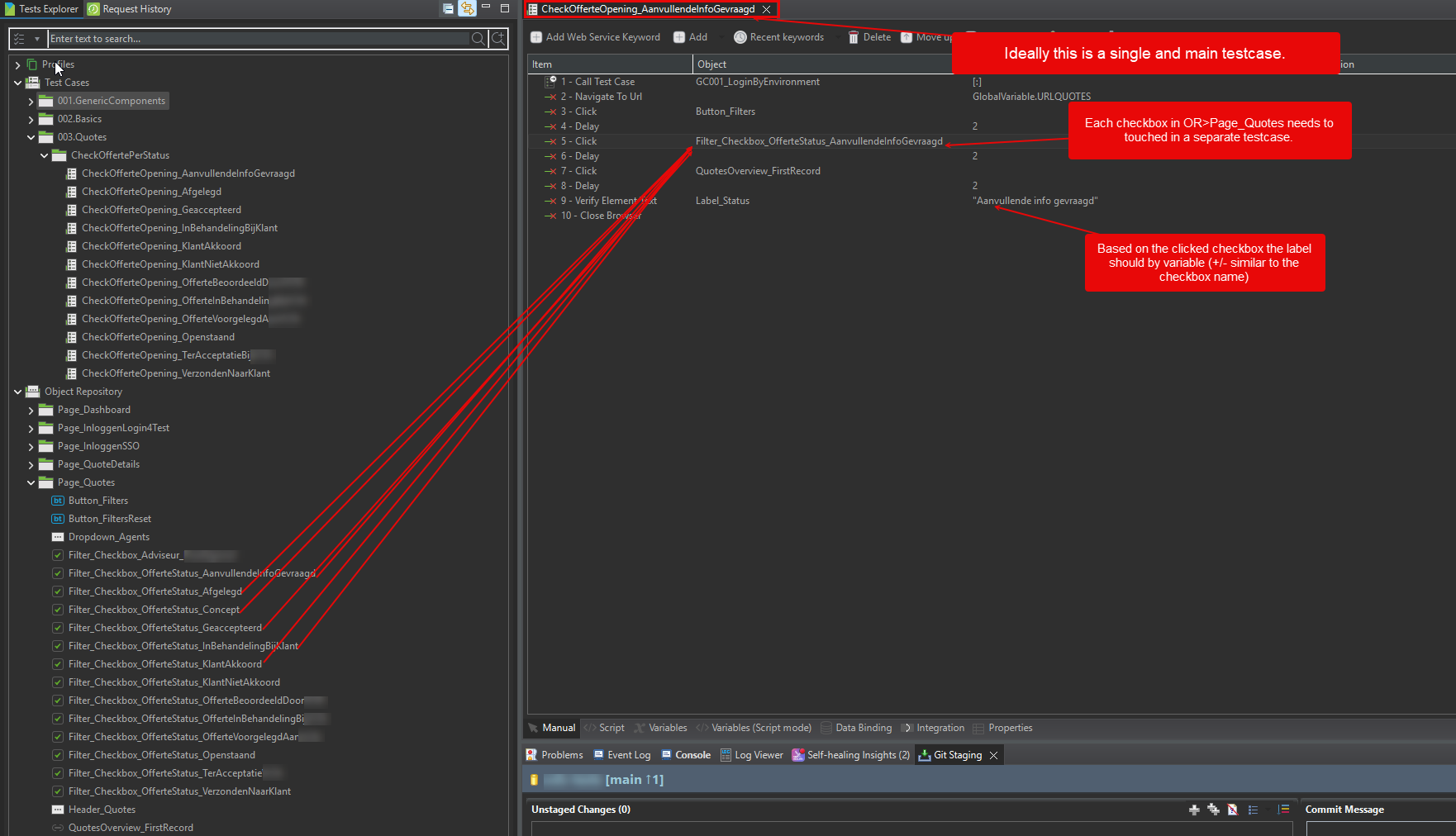
I can’t seem to add object repositories as data binding. I am testing a filter for a table view. Each filter has a checkbox with a test-object-id. I want to create a single test which check a single filter per run.
I manage to create a variable (Type is Test Object, Default value is “finTestObject(“object repository name“). But in the data binding I can’t seem to get this working as I want…?
So to recap:
- Open browser
- Navigate to an overview page
- Click on the Filter button (filter tab slides open)
- Click on a filter checkbox (This checkbox needs to be variable as there are 10 filters, for each checkbox I have a test-object-id)
- Click on first record of the filtered overview table
- Check the label of the record (there is also a test-object-id for the filter so needs to be variable as well).
Repeat this test per checkbox.
Any thoughts on this please? I’m stuck for a few days now with this.
Hi Kazurayam, I haven’t got it working as I don’t know which direction I should take. But in general, this is the idea:
import static com.kms.katalon.core.checkpoint.CheckpointFactory.findCheckpoint
import static com.kms.katalon.core.testcase.TestCaseFactory.findTestCase
import static com.kms.katalon.core.testdata.TestDataFactory.findTestData
import static com.kms.katalon.core.testobject.ObjectRepository.findTestObject
import static com.kms.katalon.core.testobject.ObjectRepository.findWindowsObject
import com.kms.katalon.core.checkpoint.Checkpoint as Checkpoint
import com.kms.katalon.core.cucumber.keyword.CucumberBuiltinKeywords as CucumberKW
import com.kms.katalon.core.mobile.keyword.MobileBuiltInKeywords as Mobile
import com.kms.katalon.core.model.FailureHandling as FailureHandling
import com.kms.katalon.core.testcase.TestCase as TestCase
import com.kms.katalon.core.testdata.TestData as TestData
import com.kms.katalon.core.testng.keyword.TestNGBuiltinKeywords as TestNGKW
import com.kms.katalon.core.testobject.TestObject as TestObject
import com.kms.katalon.core.webservice.keyword.WSBuiltInKeywords as WS
import com.kms.katalon.core.webui.keyword.WebUiBuiltInKeywords as WebUI
import com.kms.katalon.core.windows.keyword.WindowsBuiltinKeywords as Windows
import internal.GlobalVariable as GlobalVariable
import org.openqa.selenium.Keys as Keys
WebUI.callTestCase(findTestCase(‘001.GenericComponents/001.Login/GC001_LoginByEnvironment’), [:], FailureHandling.STOP_ON_FAILURE)
WebUI.navigateToUrl(GlobalVariable.URLQUOTES)
WebUI.click(findTestObject(‘Page_Quotes/Button_Filters’))
WebUI.delay(2)
WebUI.click(findTestObject(‘Page_Quotes/Filter_Checkbox_OfferteStatus_AanvullendeInfoGevraagd’))
WebUI.delay(2)
WebUI.click(findTestObject(‘Page_Quotes/QuotesOverview_FirstRecord’))
WebUI.delay(2)
WebUI.verifyElementText(findTestObject(‘Page_QuoteDetails/Label_Status’), ‘Aanvullende info gevraagd’)
WebUI.closeBrowser()
More information needed.
Please show the HTML source of your target URL.
In the HTML source, please mark the elements you want to select by
- findTestObject(‘Page_Quotes/Button_Filters’)
- findTestObject (‘Page_Quotes/Filter_Checkbox_OfferteStatus_AanvullendeInfoGevraagd’)
- findTestObject (‘Page_Quotes/QuotesOverview_FirstRecord’)
- findTestObject (‘Page_QuoteDetails/Label_Status’), ‘Aanvullende info gevraagd’
Or, take a screenshot of the page and mark the elements you want to work on.
How about this?
import static com.kms.katalon.core.testcase.TestCaseFactory.findTestCase
import static com.kms.katalon.core.testobject.ObjectRepository.findTestObject
import com.kms.katalon.core.model.FailureHandling
import com.kms.katalon.core.webui.keyword.WebUiBuiltInKeywords as WebUI
import internal.GlobalVariable as GlobalVariable

WebUI.callTestCase(findTestCase('001.GenericComponents/001.Login/GC001_LoginByEnvironment'), [:], FailureHandling.STOP_ON_FAILURE)
WebUI.navigateToUrl(GlobalVariable.URLQUOTES)

TestObject filterButtonTO = findTestObject('Page_Quotes/Button_Filters')
WebUI.verifyElementPresent(filterButtonTO, 0)
WebUI.click(filterButtonTO)

List<String> checkBoxTOIdList = [
	'Page_Quotes/Filter_Checkbox_OfferteStatus_AanvullendeInfoGevraagd',
	'Page_Quotes/Filter_Checkbox_OfferteStatus_Afgelegd'
	// ... more to be inserted
	]

checkBoxTOIdList.each { String checkBoxTOId ->
	process(checkBoxTOId)
}

WebUI.closeBrowser()

void process(String checkBoxTOId) {
	println "checkBoxTOId=${checkBoxTOId}"
	//
	TestObject checkBoxTO = findTestObject(checkBoxTOId)
	WebUI.verifyElementPresent(checkBoxTO, 10)
	WebUI.click(checkBoxTO)
	//
	TestObject firstRecordTO = findTestObject('Page_Quotes/QuotesOverview_FirstRecord')
	WebUI.verifyElementPresent(firstRecordTO, 10)
	WebUI.click(firstRecordTO)
	//
	TestObject labelStatusTO = findTestObject('Page_QuoteDetails/Label_Status')
	WebUI.verifyElementText(labelStatusTO, 'Aanvullende info gevraagd')
}
Description
It seems that you have a set of checkboxes in a target HTML.
I suppose that you want to iterate over them and apply a similar processing over each.
Then the above example will show you how the code would look like.
I think you don’t need the Data-driven testing at all. Data-driven testing is too coarse-grained in this case.
You need more precise programming techniques. You should make a function inside a Groovy script, and apply the function to the list of “checkboxes” you are interested in.
The “Manual view” of Katalon Studio’s Test Case editor does not let you write a Groovy function and a list.forEach { param -> statements } statement. You should say goodbye to the Manual view. You need to use the “Script view” and get started with elementary Groovy programming.
1. Use Data Files to Bind Test Object Names or IDs
- In your data source (Excel, CSV, Data File), store the unique test-object-id or repository path (as a string) for each filter checkbox and label.
- Example data column:
checkboxObjectId (values like “Object Repository/FilterCheckbox1”)
2. In Your Test Case: Use a Dynamic Selector for Objects
Rather than binding the test object directly, bind the test-object-id string, and resolve the Test Object at runtime:
groovy
// Suppose `checkboxObjectId` is your data-driven column
String objectPath = checkboxObjectId  // comes from data binding
TestObject dynamicCheckbox = findTestObject(objectPath)
WebUI.click(dynamicCheckbox)
Repeat this approach for label verification or other dynamic elements.
3. Apply Data Binding at Test Suite Level
- In the Test Suite, bind your variable as type “String” (not “Test Object”), then assign the value in the test case as shown above.
4. For Label Checking:
Store the label object repository path or ID in the same data file and resolve it similarly:
groovy
String labelObjectPath = labelObjectId
TestObject dynamicLabel = findTestObject(labelObjectPath)
WebUI.verifyElementText(dynamicLabel, expectedText)
5. Loop for Each Data Row
As each row of data is consumed:
- Open filter tab
- Locate and click the checkbox using dynamic selector
- Click record, verify label
- Move to next data row for next filter
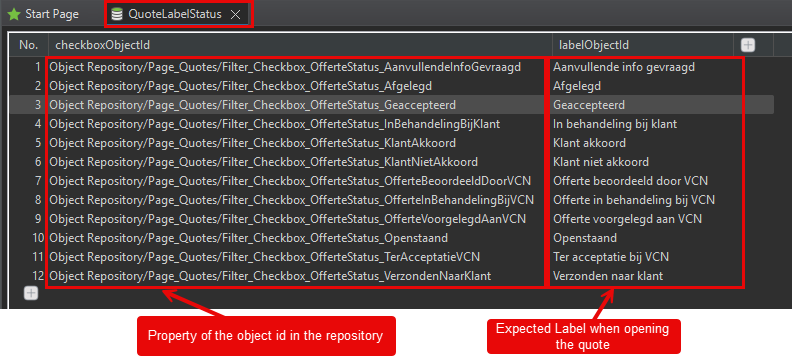
Fantastic @dineshh , with your tips I was able to achieve what I intended! As a recap for future users who might want to do the same.
-
I have created a DataFile
-
The script looks like this
import static com.kms.katalon.core.checkpoint.CheckpointFactory.findCheckpoint

import static com.kms.katalon.core.testcase.TestCaseFactory.findTestCase

import static com.kms.katalon.core.testdata.TestDataFactory.findTestData

import static com.kms.katalon.core.testobject.ObjectRepository.findTestObject

import static com.kms.katalon.core.testobject.ObjectRepository.findWindowsObject

import com.kms.katalon.core.checkpoint.Checkpoint as Checkpoint

import com.kms.katalon.core.cucumber.keyword.CucumberBuiltinKeywords as CucumberKW

import com.kms.katalon.core.mobile.keyword.MobileBuiltInKeywords as Mobile

import com.kms.katalon.core.model.FailureHandling as FailureHandling

import com.kms.katalon.core.testcase.TestCase as TestCase

import com.kms.katalon.core.testdata.TestData as TestData

import com.kms.katalon.core.testng.keyword.TestNGBuiltinKeywords as TestNGKW

import com.kms.katalon.core.testobject.TestObject as TestObject

import com.kms.katalon.core.webservice.keyword.WSBuiltInKeywords as WS

import com.kms.katalon.core.webui.keyword.WebUiBuiltInKeywords as WebUI

import com.kms.katalon.core.windows.keyword.WindowsBuiltinKeywords as Windows

import internal.GlobalVariable as GlobalVariable

import org.openqa.selenium.Keys as Keys


WebUI.callTestCase(findTestCase('001.GenericComponents/001.Login/GC001_LoginByEnvironment'), [:], FailureHandling.STOP_ON_FAILURE)

WebUI.navigateToUrl(GlobalVariable.URLQUOTES)

WebUI.click(findTestObject('Page_Quotes/Button_Filters'))

WebUI.waitForPageLoad(1)


// Suppose `checkboxObjectId` is your data-driven column
String objectPath = checkboxObjectId // comes from data binding
TestObject dynamicCheckbox = findTestObject(objectPath)
WebUI.click(dynamicCheckbox)


WebUI.waitForPageLoad(1)


WebUI.click(findTestObject('Page_Quotes/QuotesOverview_FirstRecord'))

WebUI.waitForPageLoad(1)


WebUI.verifyElementText(findTestObject('Page_QuoteDetails/Label_Status'), labelObjectId)


WebUI.closeBrowser()
-
Variables for this test:
-
Data binding:
I did something similar using variable declaration “${var_name}“ inside the Test Object location strategy (e.g. XPath).
This created a Dynamic test Object where I can just simply use and bind their locator with a Data File.