
I am trying to generate a desktop test with Katalon Studio free
Usage information:
Katalon not only supports Web and Mobile, it also supports desktop applications (Windows Desktop Apps) thanks to its integration with WinAppDriver.
 Environment setup:
- Katalon Studio (free version).
- WinAppDriver installed on your PC (Windows 10 or higher).
o Run it (open a console window with the service running).
o If everything is correct, you will see something like:
Windows Application Driver listening for requests at: http://127.0.0.1:4723/
Press ENTER to exit.
 This means that the server is running and waiting for Katalon to send commands.
 - The desktop application you want to test installed on your machine (e.g., Windows Calculator, Notepad, your own app).
 Step by step: Automate Calculator with Katalon Studio + WinAppDriver
A. Create a new project → Windows Desktop type in Katalon Studio
- Open Katalon Studio (the free version will do).
- Create a New Project → Windows Desktop type.
- Give it a name, for example: CalcTest.
- Choose the folder where the project will be saved on your disk.
- Click OK / Finish.
B. Configure the application (Calculator)
-
In the top menu, go to Project > Settings > Desired Capabilities > Windows.
-
There you will see a section with:
• Remote Web Driver URL
Enter this address (it is the WinAppDriver server that you must have open beforehand): http://127.0.0.1:4723
• A Desired Capabilities table with columns:
o Name
o Type
o Value
Add these rows:Name Type Value
app String Microsoft.WindowsCalculator_8wekyb3d8bbwe!App
deviceName String WindowsPC
platformName String Windows -
Save and use
C. Record a test case
Create a Test Case
D. Record the action in the Calculator
- Click on Record Windows Action (the camera button
 ).
). - The recorder will open and, thanks to your Desired Capabilities, the Windows Calculator will open automatically.
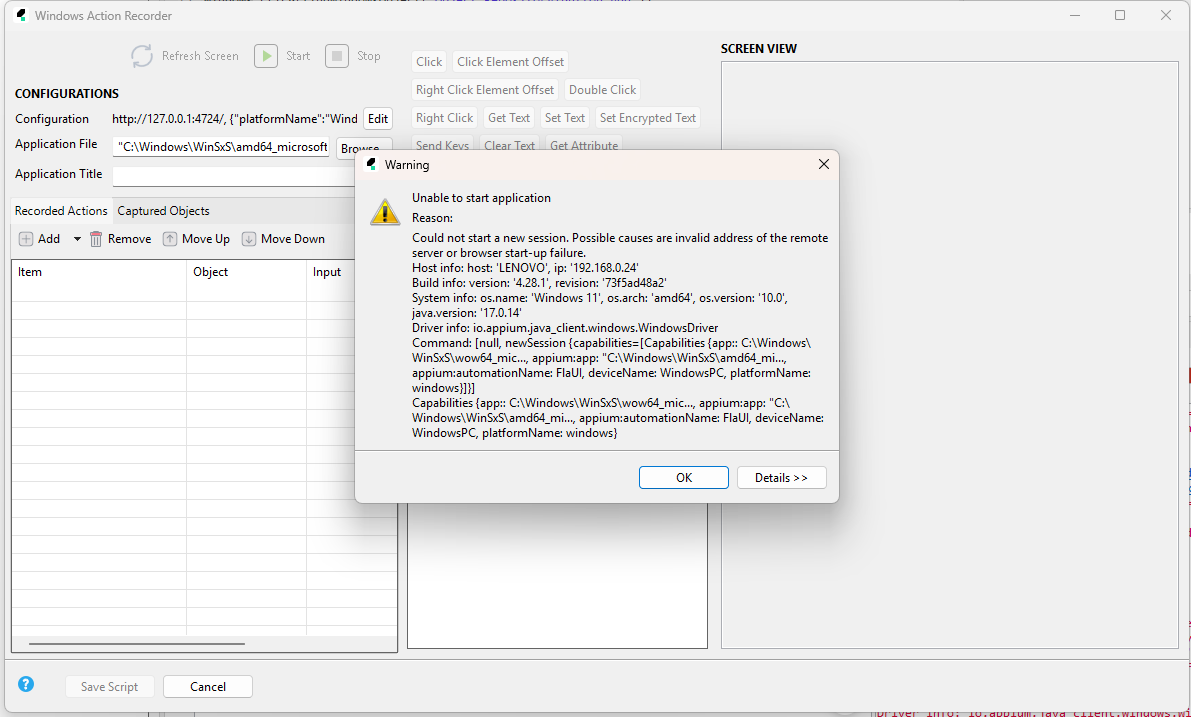
Windows Action Recorder generates the following warning:
java.util.concurrent.ExecutionException: org.openqa.selenium.SessionNotCreatedException: Unable to start a new session. Possible causes are an invalid remote server address or an error starting the browser.Host information: host: ‘LENOVO’, ip: ‘192.168.0.24’Build information: version: ‘4.28.1’, revision: ‘73f5ad48a2’System information: os.name: ‘Windows 11’, os.arch: ‘amd64’, os.version: ‘10.0’, java.version: ‘17.0.14’Driver information: io.appium.java_client.windows.WindowsDriverCommand: [null, new session {capabilities=[Capabilities {app:: C:\Windows\WinSxS\wow64_mic…, appium:app: "C:\Windows\WinSxS\amd64_mi…, appium:automationName: FlaUI, deviceName: WindowsPC, platformName: windows}]}]Capabilities {app:: C:\Windows\WinSxS\wow64_mic…, appium:app: "C:\Windows\WinSxS\amd64_mi…, appium:automationName: FlaUI, deviceName: WindowsPC, platformName: windows}in com.kms.katalon.composer.components.impl.dialogs. ProgressMonitorDialogWithThread.runAndWait(ProgressMonitorDialogWithThread.java:49)in com.kms.katalon.composer.windows.dialog.WindowsAppComposite$5.run(WindowsAppComposite.java:245)at org.eclipse.jface.operation.ModalContext$ModalContextThread.run(ModalContext.java:124)Caused by: org.openqa.selenium.SessionNotCreatedException: Unable to start a new session. Possible causes are an invalid remote server address or a browser startup error.Host information: host: ‘LENOVO’, ip: ‘192.168.0.24’Build information: version: ‘4.28.1’, revision: ‘73f5ad48a2’System information: os.name: ‘Windows 11’, os.arch: ‘amd64’, os.version: ‘10.0’, java.version: ‘17.0.14’Driver information: io.appium.java_client.windows.WindowsDriverCommand: [null, new session {capabilities=[Capabilities {app:: C:\Windows\WinSxS\wow64_mic…, appium:app: "C:\Windows\WinSxS\amd64_mi…, appium:automationName: FlaUI, deviceName: WindowsPC, platformName: windows}]}]Capabilities {app:: C:\Windows\WinSxS\wow64_mic…, appium:app: "C:\Windows\WinSxS\amd64_mi…, appium:automationName: FlaUI, deviceName: WindowsPC, platformName: windows}in org.openqa.selenium.remote. RemoteWebDriver.execute(RemoteWebDriver.java:563)in io.appium.java_client.AppiumDriver.startSession(AppiumDriver.java:270)in org.openqa.selenium.remote.RemoteWebDriver.(RemoteWebDriver.java:174)at io.appium.java_client.AppiumDriver.(AppiumDriver.java:91)at io.appium.java_client.windows.WindowsDriver.(WindowsDriver.java:46)at com.kms.katalon.core.windows.driver.WindowsDriverFactory.newWindowsDriver(WindowsDriverFactory.java:186)at com.kms.katalon.core.windows.driver.WindowsDriverFactory.startApplication(WindowsDriverFactory.java:139)at com.kms.katalon.composer.windows.spy.WindowsInspectorController.startApplication(WindowsInspectorController.java:169)in com.kms.katalon.composer.windows.dialog.WindowsAppComposite$5$1.call(WindowsAppComposite.java:249)in com.kms.katalon.composer.components.impl.dialogs.ProgressMonitorDialogWithThread.startThreadAndWait(ProgressMonitorDialogWithThread.java:36)in com.kms.katalon.composer.components.impl.dialogs.ProgressMonitorDialogWithThread.runAndWait(ProgressMonitorDialogWithThread.java:48)… 2 moreCaused by: java.lang.IllegalArgumentException: Illegal key values observed in w3c capabilities: [deviceName]in org.openqa.selenium.remote.NewSessionPayload.lambda$validate$5(NewSessionPayload.java:163)in org.openqa.selenium.remote.NewSessionPayload.validate(NewSessionPayload.java:167)in org.openqa.selenium.remote.NewSessionPayload. (NewSessionPayload.java:70)in org.openqa.selenium.remote.NewSessionPayload.create(NewSessionPayload.java:99)in org.openqa.selenium.remote.NewSessionPayload.create(NewSessionPayload.java:84)in org.openqa.selenium.remote.ProtocolHandshake.createSession(ProtocolHandshake.java:60)in io.appium.java_client.remote.AppiumCommandExecutor.createSession(AppiumCommandExecutor.java:176)in io.appium.java_client.remote.AppiumCommandExecutor.execute(AppiumCommandExecutor.java:237)in org.openqa.selenium.remote.RemoteWebDriver.execute(RemoteWebDriver.java:545)…12 more
The same thing happens if you enter the code in the script tab and run Run → Windows.