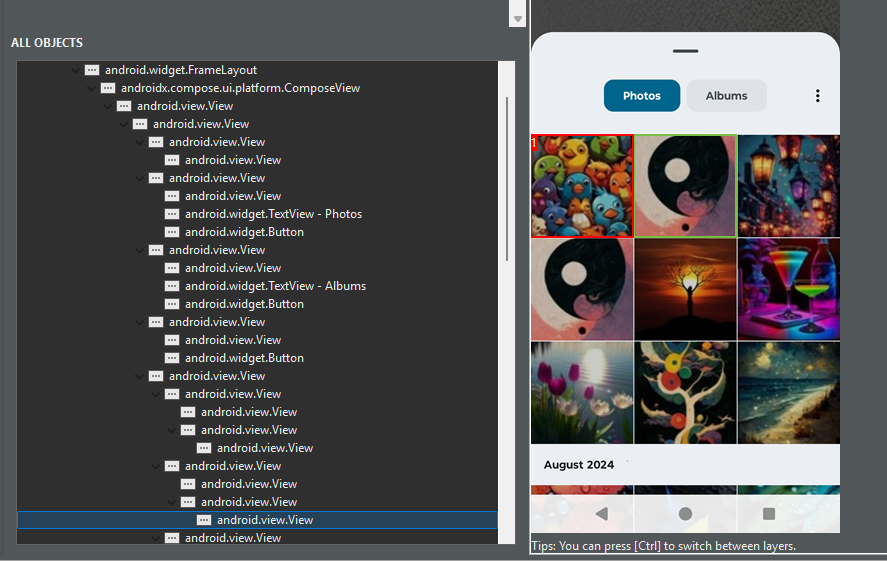
To resolve the issue where Katalon keeps selecting the second image instead of the first in your Android ComposeView, follow these steps:
1. Use Image Recognition (Recommended)
Since standard locators fail, leverage Katalon’s image-based recognition:
groovy
import com.kms.katalon.core.mobile.keyword.MobileBuiltInKeywords as Mobile

// Capture reference image of Pic1 (store in project dir)
String refImage = 'Path/to/your/pic1_reference.png'

// Set similarity threshold (adjust as needed)
float similarity = 0.75

// Tap on matching image
Mobile.tapOnImage(refImage, similarity)
2. Positional Targeting via Bounds
If images are in a grid, calculate coordinates:
groovy
// Get screen dimensions
int screenWidth = Mobile.getDeviceWidth()
int screenHeight = Mobile.getDeviceHeight()

// Calculate position for first image (e.g., top-left quarter)
int tapX = screenWidth / 4
int tapY = screenHeight / 4

Mobile.tapAtPosition(tapX, tapY)
3. Accessibility Properties (Compose-Specific)
Add test tags in your Compose UI code:
kotlin
// In Android app code
Image(
    painter = ...,
    contentDescription = "Content image",
    modifier = Modifier.testTag("image_1") // Add this
)
Then use in Katalon:
groovy
Mobile.tap(findTestObject('Object Repository/image_1'), 0)
4. Child Index Targeting
If images share a parent container:
groovy
TestObject parent = findTestObject('parent_container')
TestObject firstImage = Mobile.getChildObject(parent, 0) // 0 = first child
Mobile.tap(firstImage, 0)
5. Dynamic Object Identification
Use Groovy to filter by visible content:
groovy
List<TestObject> allImages = Mobile.findObjects(findTestObject('Generic_View'))

for (TestObject image : allImages) {
    String contentDesc = Mobile.getAttribute(image, 'content-desc')
    if (contentDesc?.contains("unique_text_near_pic1")) {
        Mobile.tap(image, 0)
        break
    }
}
Configuration Tips:
- Enable advanced spy mode:
- In Katalon: Settings > Mobile > Record > Enable advanced spy mode
- Use “Capture Elements with Hierarchy” during spying
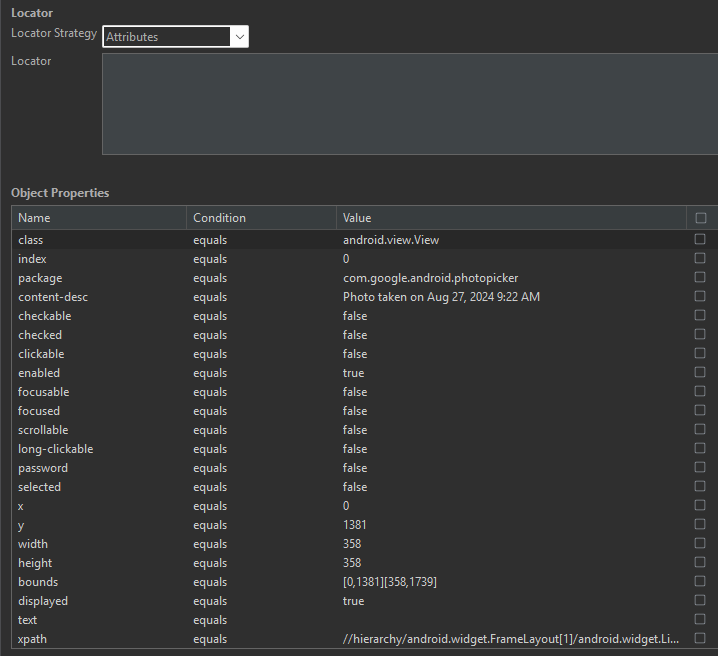
- Adjust object properties:
java
// In object properties
[{
  "class": "android.view.View",
  "index": "0",       // First match
  "bounds": "[0,0][500,500]" // Specific area
}]
- Disable view recycling (if dynamic):
groovy
Mobile.switchToNative()
Mobile.scrollToTop()
Troubleshooting Workflow:
- Use Mobile.startExistingApplication() to reset state
- Run Mobile.delay(3) before image selection
- Capture UI hierarchy via:
groovy
String xml = Mobile.getDeviceOS() == 'android' ?
             Mobile.getAttribute(findTestObject('*'), 'xpath') :
             Mobile.getAllViews()
println xml
Alternative for Flaky Tests:
groovy
int attempts = 0
while (attempts < 3) {
    try {
        Mobile.tapOnImage(refImage, 0.7)
        break
    } catch (Exception e) {
        Mobile.swipe(0, 300, 0, 500) // Adjust swipe if needed
        attempts++
    }
}
Key Notes:
- Use image recognition for highest accuracy
- Test tags (Modifier.testTag) are the most reliable if you control app code
- For pixel-perfect taps, combine getChildObject() with bounds
- Avoid XPath in Compose - use accessibility hierarchy instead
Example of full test case:
groovy
'Select first image': {
    String refImage = 'TestData/Images/pic1_ref.png'
    float similarity = 0.8

    try {
        Mobile.tapOnImage(refImage, similarity)
    } catch (NotFoundException e) {
        // Fallback to coordinates
        int width = Mobile.getDeviceWidth()
        int height = Mobile.getDeviceHeight()
        Mobile.tapAtPosition(width/4, height/4)
    }
}
 Why Is Image 1 Selecting Image 2?
 Recommended Strategies to Fix It
 This is the most stable, long-term fix because test tags persist and are specifically made for UI testing.